My Galaxy Tab S7+ Just Ate My Laptop for Breakfast (How to Run Full VS Code on Android)
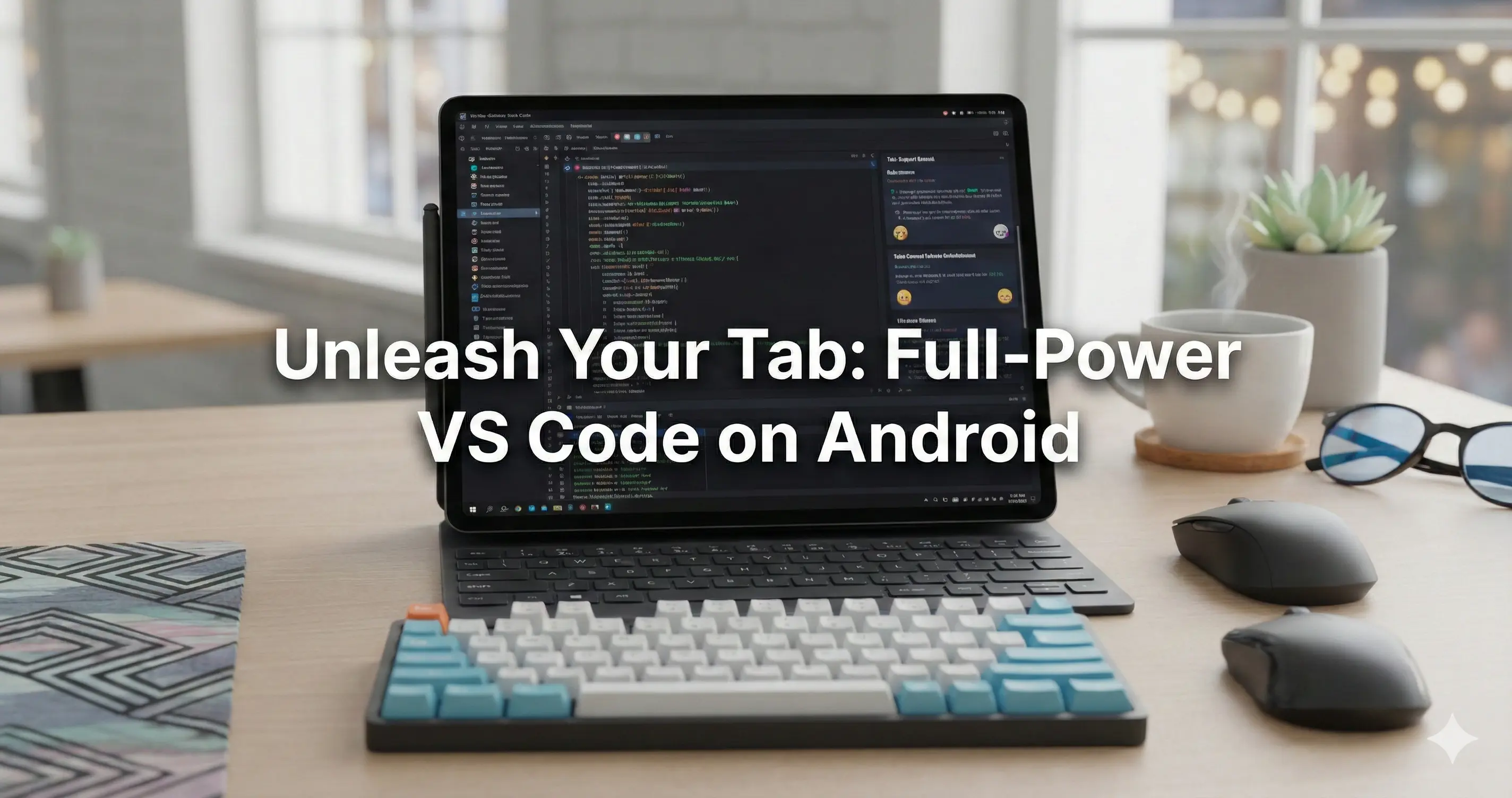
Hold my coffee. Actually, hold my entire desktop setup. For years, the tech world told us that tablets were for “consumption,” for doom-scrolling TikTok, or maybe—if you were feeling spicy—answering a few emails. But coding? Real, honest-to-goodness, full-stack, terminal-pounding coding?
“Pfft,” they scoffed, “get a real laptop.”
Well, my friends, it is 2026. I have a Samsung Galaxy Tab S7+, a stubborn refusal to carry a heavy backpack, and a sprinkle of Linux magic. I am here to tell you the naysayers were wrong. Hilariously, wonderfully wrong.
Yes, my Tab S7+ is a bit old by now, but I’ve finally found real productivity use for it—and it’s more capable than ever.
I just turned my sleek tablet into a full-blown development machine without rooting it, breaking it, or using some janky “Code Editor Lite” app.
For context: I know code-server works well with Ubuntu—I’ve used it almost daily for development. I just hadn’t tried it with Android until now. (I previously tried Termux from the Play Store and failed, so don’t make that mistake!)
Here is how I got the real VS Code engine running locally on my tablet.
The Myth of the “Port” (It’s a Trap!)
I started this journey thinking, “I need to build a port app! I need to fork VS Code!” I was ready to dive into the spaghetti code of Electron and try to wrap it in an Android APK. But then I realized: Why reinvent the wheel when you can just steal the car?
The “Port” approach is usually a trap. It leads to outdated versions and limited extension support. The better way? Termux + Ubuntu + Code-Server.
This setup tricks VS Code into thinking it’s running on a standard Linux server. Because, well… it is.
The Secret Sauce: Termux + Ubuntu
Think of your Android tablet as a fancy box. Inside that box, we are going to create a Linux playground using Termux. Inside that playground, we install Ubuntu. And inside Ubuntu, we run VS Code.
It sounds like Inception, but it runs smoother than butter on a hot bagel.
Step 1: Ditch the Play Store
First rule of Termux Club: Do not use the Play Store version. It is outdated and sad.
Go to F-Droid and download the latest Termux APK.
Step 2: Unleash the Linux Within
Open Termux. It looks like a hacker movie from the 90s. Type these magical incantations:
1
2
3
4
5
6
7
8
9
10
11
12
# Update everything (always eat your veggies)
pkg update && pkg upgrade

# Install the proot-distro utility (our Linux creator)
pkg install proot-distro

# Install Ubuntu (it downloads surprisingly fast!)
proot-distro install ubuntu

# Log in to your new digital home
proot-distro login ubuntu
Step 3: The “Permission Denied” Gremlin (And How to Kill It)
This is where I hit a wall. Android 11+ is paranoid about file access. Even if you are root in Ubuntu, Android says “No touchy the files.”
If you try to access your SD card and get Permission Denied, do this:
- Go to Android Settings > Apps > Special App Access > All Files Access.
- Find Termux and toggle it ON.
- Go back to Termux (the main screen, not Ubuntu) and run:
termux-setup-storage. - If it still fails, restart the tablet. (Have you tried turning it off and on again?)
Step 4: The Magic Bind
Now for the trick that makes this actually usable. We need to tell Ubuntu where your real files live.
We use the --bind flag to tunnel your storage into the Linux container.
1
2
3
4
5
6
# Exit Ubuntu if you are inside it
exit

# Log back in with the bind mount
proot-distro login ubuntu --bind /sdcard:/sdcard
Now, when you type ls /sdcard inside Ubuntu, you actually see your Downloads folder!
Step 5: Install code-server
This is the engine that powers VS Code in the browser.
1
2
3
4
5
6
7
# Install dependencies
apt update && apt upgrade
apt install curl

# Download and run the install script
curl -fsSL [https://code-server.dev/install.sh](https://code-server.dev/install.sh) | sh
Step 6: Launch Time
Start the engine. We use --auth none because we are running this locally on a secure tablet, and typing passwords is annoying.
1
2
code-server --auth none
Open Chrome on your tablet and go to http://localhost:8080.
BOOM. That is VS Code. The real UI. The real extensions. The real terminal.
The Samsung DeX Factor
This is where the Galaxy Tab S7+ flexes its muscles.
I snapped on my keyboard cover, hit the DeX button, and suddenly I wasn’t on a tablet anymore. I was on a desktop.
- Multi-window support? ✅
- Mouse and trackpad support? ✅
- External monitor support? ✅✅
Pro Tip: In Chrome, tap the three dots and select “Install App”. This turns your browser tab into a Progressive Web App (PWA). It gets its own icon on your home screen and launches full-screen without the URL bar. It looks exactly like a native app.
Why This Wins
- No Forking Required: I didn’t have to write a single line of Java or Kotlin.
- Full Access: I can
npm install,pip install, and compile C++ code right on the tablet. - Battery Life: My S7+ lasts longer than my gaming laptop ever could.
So, if you see me at a coffee shop aggressively typing on a thin slice of glass, don’t worry. I’m not playing Candy Crush. I’m deploying to production.
Happy Coding!